Getting started
Install PineBag, connect it to a TradingView chart, and prepare your first strategy and bag.
Before you begin
- Google Chrome 116 or newer.
- A signed-in TradingView account with access to the symbols you want to test.
- A Pine Script file that declares
strategy(), not onlyindicator().
Install and open PineBag
- Install the extension.
Use the install link from PineBag and pin the extension if you want quick access. - Open a TradingView chart.
Sign in first, then open any supported market and timeframe. - Open PineBag.
Select the PineBag icon and open its side panel. The connection indicator turns green when the chart is ready.
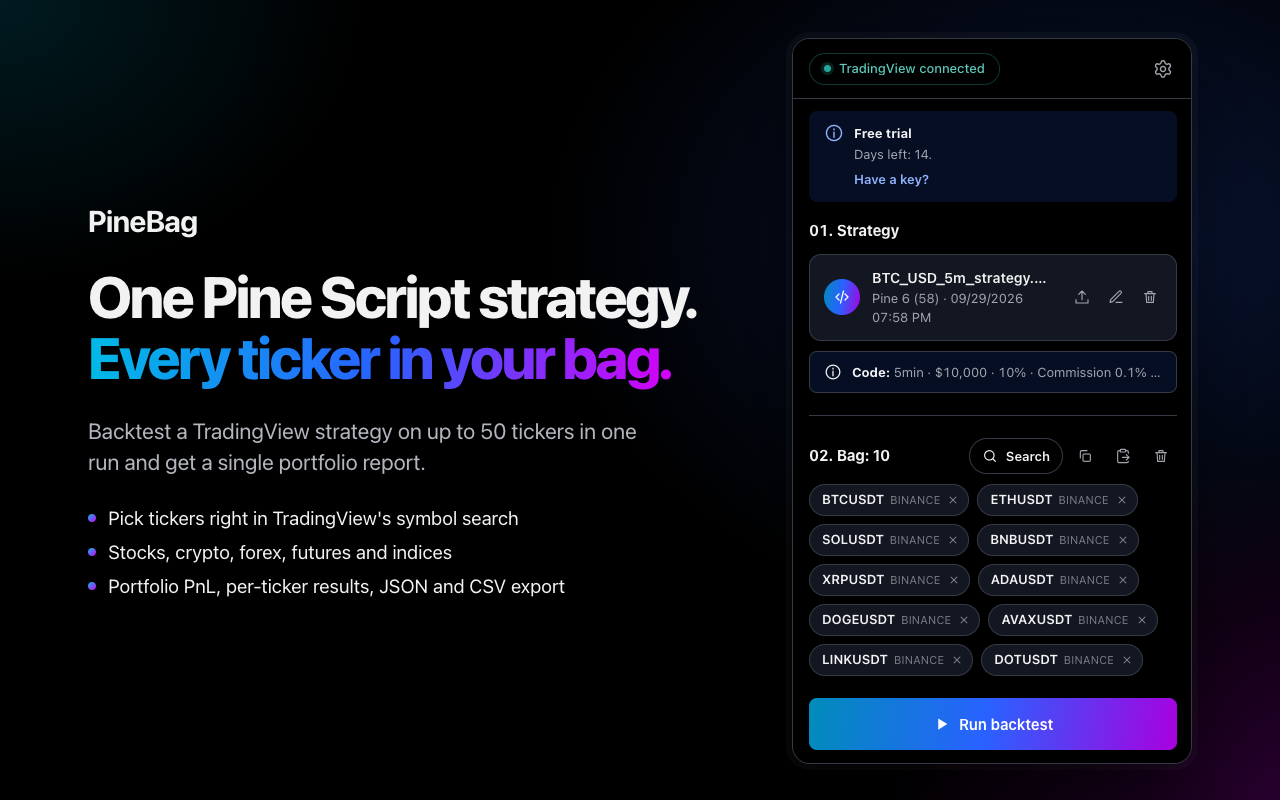
What each area does
Shows whether PineBag can talk to the active TradingView tab and displays trial or license status.
Upload a .pine file, open the built-in editor, validate code and keep the current strategy version.
Set timeframe, capital, order size and commission, and choose script or TradingView priority.
Search TradingView symbols, paste EXCHANGE:SYMBOL lists, copy, remove or clear up to 50 entries.
Starts the sequential backtest and shows the current ticker, progress, cancellations and errors.
Opens locally stored portfolio reports. PineBag keeps the latest 50 together with the tested script.
Load a strategy
Drop a .pine file into the strategy area or open the editor and paste source code. PineBag highlights Pine syntax, validates that the script is a strategy, and saves changes locally in the browser.
indicator(), convert it to a strategy before running PineBag.